> ## Documentation Index
> Fetch the complete documentation index at: https://help.coresee.com/llms.txt
> Use this file to discover all available pages before exploring further.
# Settings Tab
The Settings tab is where a room's identity, access rules, and default screen-share quality live. It's organized into three accordions: **Room Info**, **Room Controls**, and **Share Screen Settings**.
The Settings icon is always visible in the Side Panel, in both the room and the homepage. What each person sees inside it depends on their role:
* **Participants** see the Room Info accordion only, in read-only form.
* **Host and Co-Host** see all three accordions, with full editing rights over Room Controls and Room Info's rename field.
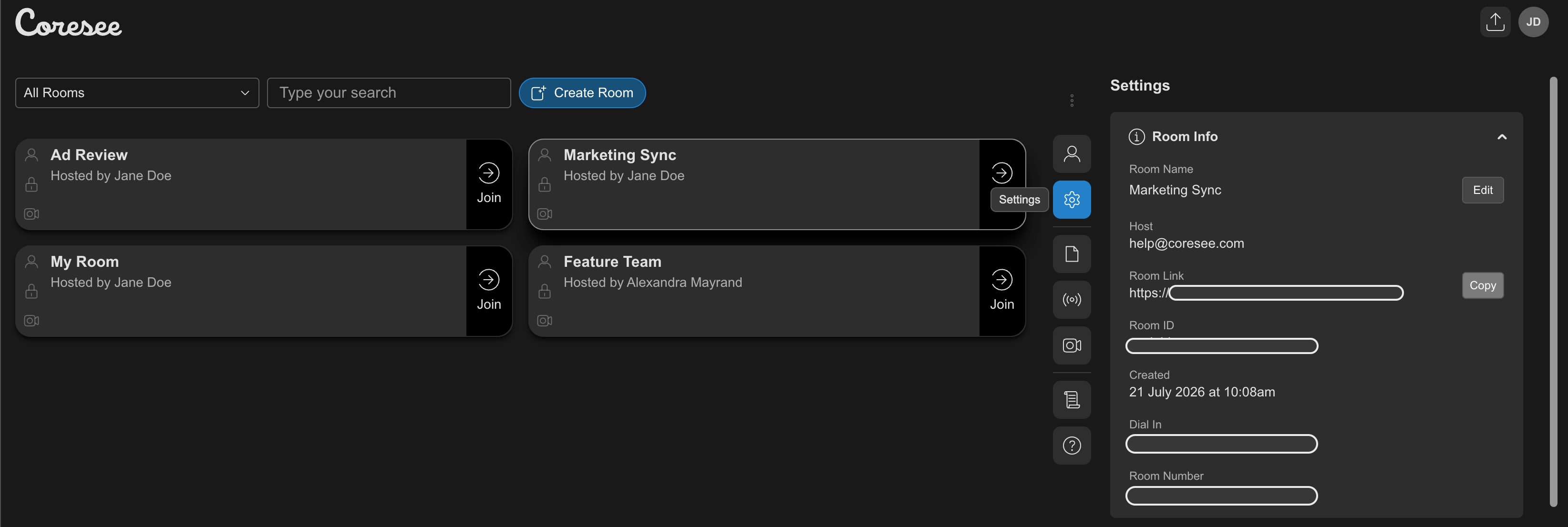
## **Room Info**
A read-only summary of the room's identity, with one editable field for the host and co-hosts: the room name. This accordion is visible to everyone, including participants.
 ## **Room Controls**
Access gates and entry policies for the room, plus the option to close it. This accordion is host and co-host only — participants do not see it.
Participants must be signed in to enter the room. Anyone not authenticated is intercepted at the door and prompted to sign in.
Restricts access to the room to participants invited in the list.
The room cannot open without a host or co-host present — participants see a "Host Required" notice until the host joins.
Turns on a waiting room within the Participant Tab. New arrivals are held until the host or co-host admits them individually or all at once.
All participants join the room with their microphone muted by default.
Participants join hidden by default. Their tile is not visible, and they cannot be seen or heard. They can interact through the chat only.
Allows events to be tracked during a session. If this setting is turned off, the History tab remains available and can still display previous sessions recorded while the setting was enabled.
Allows events to be tracked during a session. If this setting is turned off, the History tab remains available and can still display previous sessions recorded while the setting was enabled.
Ends the session for everyone. A confirmation dialog appears before the room closes — once confirmed, all participants are immediately removed and the room enters a closed state. **This does not delete the room.**
**Toggling access controls mid-session doesn't retroactively affect people already in the room.** For example, turning on Login Required doesn't kick out unauthenticated guests who already joined — it only applies to new arrivals. The same applies to Host Admits Users: anyone already waiting stays in the existing queue, while new arrivals go through the updated policy. Enter Muted and Enter Hidden only apply to future joins as well — current participants' mic and camera state are unaffected.
## **Share Screen Settings**
Sets the room's default quality for outgoing screen shares. They apply to the next screen share started in the room, not one already in progress.
This documentation is built and hosted on [Mintlify](https://mintlify.com), a developer documentation platform.
## **Room Controls**
Access gates and entry policies for the room, plus the option to close it. This accordion is host and co-host only — participants do not see it.
Participants must be signed in to enter the room. Anyone not authenticated is intercepted at the door and prompted to sign in.
Restricts access to the room to participants invited in the list.
The room cannot open without a host or co-host present — participants see a "Host Required" notice until the host joins.
Turns on a waiting room within the Participant Tab. New arrivals are held until the host or co-host admits them individually or all at once.
All participants join the room with their microphone muted by default.
Participants join hidden by default. Their tile is not visible, and they cannot be seen or heard. They can interact through the chat only.
Allows events to be tracked during a session. If this setting is turned off, the History tab remains available and can still display previous sessions recorded while the setting was enabled.
Allows events to be tracked during a session. If this setting is turned off, the History tab remains available and can still display previous sessions recorded while the setting was enabled.
Ends the session for everyone. A confirmation dialog appears before the room closes — once confirmed, all participants are immediately removed and the room enters a closed state. **This does not delete the room.**
**Toggling access controls mid-session doesn't retroactively affect people already in the room.** For example, turning on Login Required doesn't kick out unauthenticated guests who already joined — it only applies to new arrivals. The same applies to Host Admits Users: anyone already waiting stays in the existing queue, while new arrivals go through the updated policy. Enter Muted and Enter Hidden only apply to future joins as well — current participants' mic and camera state are unaffected.
## **Share Screen Settings**
Sets the room's default quality for outgoing screen shares. They apply to the next screen share started in the room, not one already in progress.
This documentation is built and hosted on [Mintlify](https://mintlify.com), a developer documentation platform.