> ## Documentation Index
> Fetch the complete documentation index at: https://help.coresee.com/llms.txt
> Use this file to discover all available pages before exploring further.
# Inviting Participants to a Room
You can invite people to a Coresee room whether or not a session is currently active. Invites are sent from the Participants tab, and since rooms are persistent, anyone you invite stays on the room's participant list for future sessions too — not just the one happening right now.
## **Where to Invite From**
The Participants tab within the Side Panel is available in two places, and inviting works the same way in both.
Open the room's Control Panel from the homepage and go to the Participants tab. Useful for inviting people ahead of a session, before anyone has joined.
During a live session, open the Participants tab from the side panel to invite someone on the fly.
## **How to Invite Someone**
You'll need to be a host or co-host of the room to invite participants.
From the homepage or from inside the room.
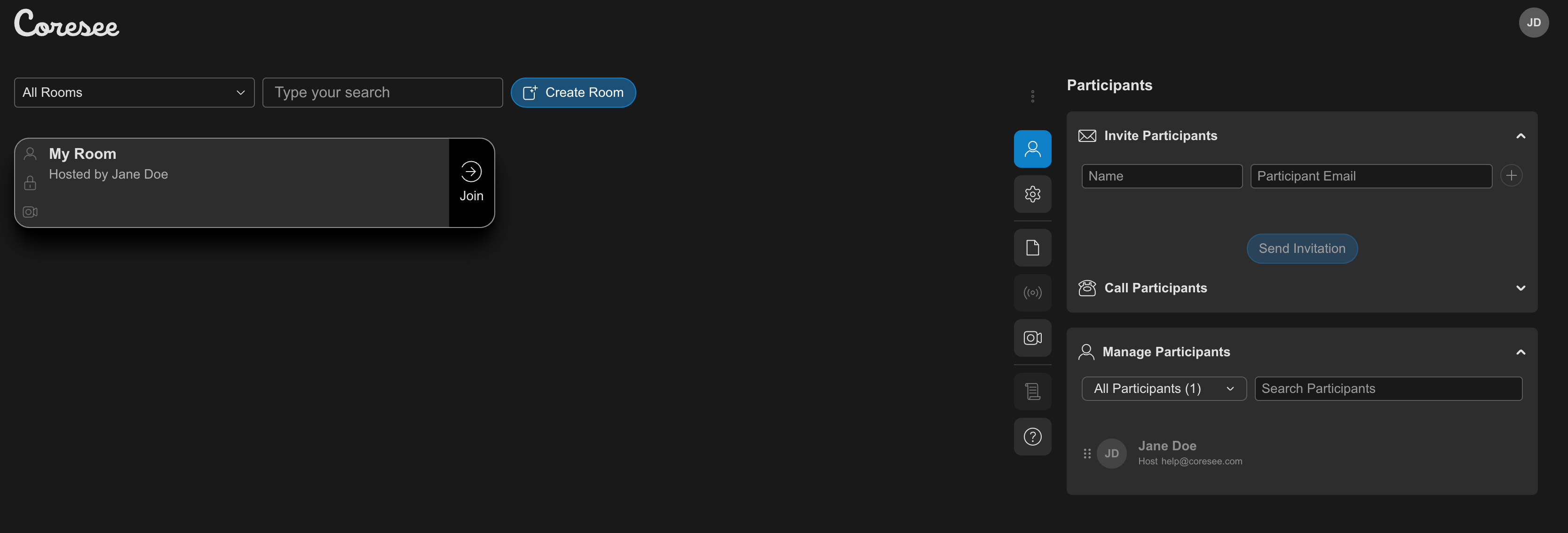 Type them into the text field, or paste a list copied from a spreadsheet, CSV file, or calendar invitation — Coresee detects the format and splits it into individual entries automatically.
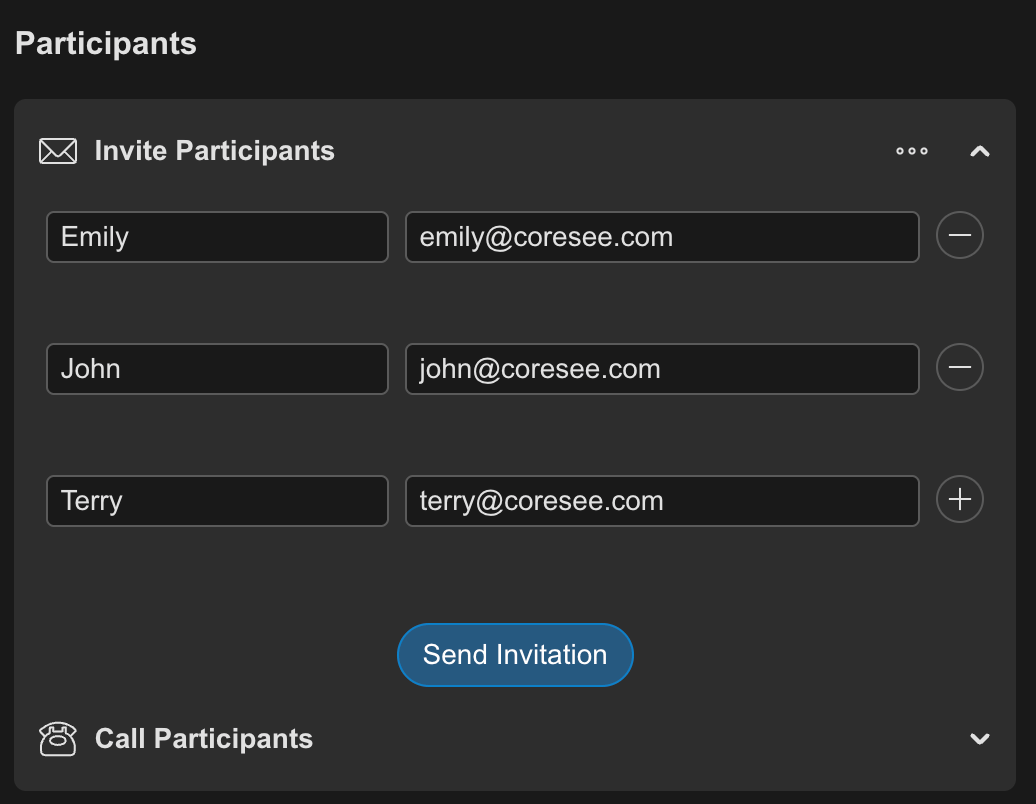 The person is added to the room's participant list and receives an email with the room link.
## **How Invitation Emails Work**
Sending an invitation doesn't only email the person you just added: it can also go to people already on the room's participant list who haven't received one yet.
If someone joined a room without ever being formally invited — for example, they were just given the room link or joined manually — they're added to the participant list but haven't received an invitation email. The next time *anyone* is invited to that same room, Coresee sends the invitation email to every participant on the list who hasn't received one yet, not just the newly invited person.
This documentation is built and hosted on [Mintlify](https://mintlify.com), a developer documentation platform.
The person is added to the room's participant list and receives an email with the room link.
## **How Invitation Emails Work**
Sending an invitation doesn't only email the person you just added: it can also go to people already on the room's participant list who haven't received one yet.
If someone joined a room without ever being formally invited — for example, they were just given the room link or joined manually — they're added to the participant list but haven't received an invitation email. The next time *anyone* is invited to that same room, Coresee sends the invitation email to every participant on the list who hasn't received one yet, not just the newly invited person.
This documentation is built and hosted on [Mintlify](https://mintlify.com), a developer documentation platform.